


Install Proxmox on energy-efficient hardware
Proxmox Virtual Environment (Proxmox VE) is a powerful, open-source virtualization solution that allows you to easily manage multiple virtual machines (VMs) and containers on a single physical server. Generally, people use fast, energy-consuming and expensive hardware for virtualization, but it can also work perfectly on energy-efficient hardware with a friendlier price tag. Small servers like the TopTon N100 server work perfectly with Proxmox!
In this article we focus on the TopTon N100 server, which is available in various variants: we have the variant with 1TB NVMe and 32GB internal memory, also added a 480GB SSD and a WIFI mini-PCI card. The use of WIFI is not recommended/supported by Proxmox but it is possible. More about this later.
Proxmox installation
The easiest way to install Proxmox is via a USB stick (or a DVD) with the Proxmox image on it, boot the server with the USB stick (or DVD) and the Proxmox installer will start.
Go through all steps and make sure you select the correct partitioning: partition the internal NVMe storage as ZFS RAID-0 (striping): you won’t have data protection but with ZFS you can later more easily restore VM and CT backups.
If you have placed a 2nd SSD: we will install it later.
After Proxmox is installed, we first start the Proxmox VE Post install script, after which your initial Proxmox installation is ready.
Add/install SSD as extra ZFS storage
Installing the added SSD is quite simple.
- Find the device of the SSD:
lsblk -d -o NAME,SIZE,MODELFind the name of the SSD, for example /dev/sda.
- Wipe existing partitions (optional but recommended):
wipefs -a /dev/sda- Create a new ZFS pool:
zpool create ssd-zfs /dev/sdaReplace ssd-zfs with your desired name and /dev/sda with the correct device.
- Add the pool in the Proxmox GUI
Go to Datacenter > Storage > Add > ZFS
Choose:
- ID:
ssd-zfs - ZFS Pool:
ssd-zfs - Content: check (Disk image, Container, etc.)
- Nodes: select your node
Click Add
Your ZFS SSD storage is now ready for use in Proxmox.
OPNsense installation

OPNsense is an open source firewall and routing platform, based on FreeBSD and the powerful pf packet filter. With a user-friendly web interface it offers complete network security: from stateful packet inspection and NAT to VPN tunnels (IPsec, OpenVPN, WireGuard) and advanced intrusion detection/prevention. Thanks to a modular design and regular community updates you can easily add extra features via plugins, such as proxy servers, captive portals and traffic shaping. OPNsense is suitable for both small home situations and complex corporate networks and distinguishes itself by transparency, extensive logging and an active open-source community.
OPNsense is not really necessary for the virtualization adventure but it is nice to try it out. For OPNsense you need 2 network bridges, by default only 1 network bridge (vmbr0) is created during the Proxmox installation. So we will add one via the Proxmox dashboard; the TopTon server has no less than 4 LAN ports of which 1 (ETH0) is in use.
In the Proxmox dashboard go to Node > System > Network, you will see an overview of all network interfaces.
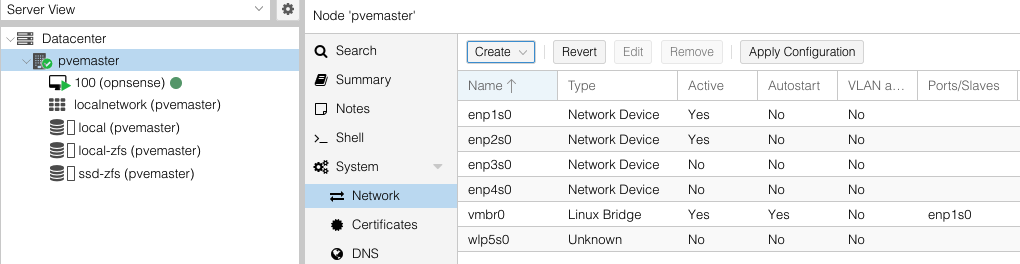
- Click Create
- Select Linux Bridge, enter the next free network port (enp2s0) at Bridge ports
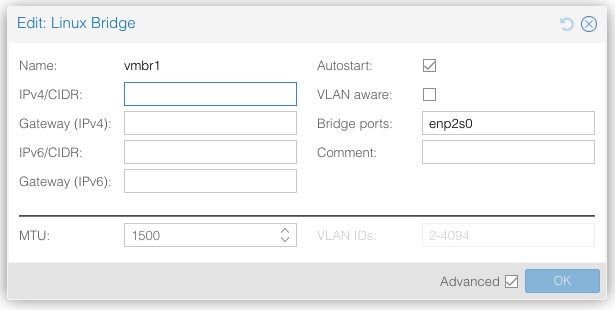
- Click OK to save the new bridge
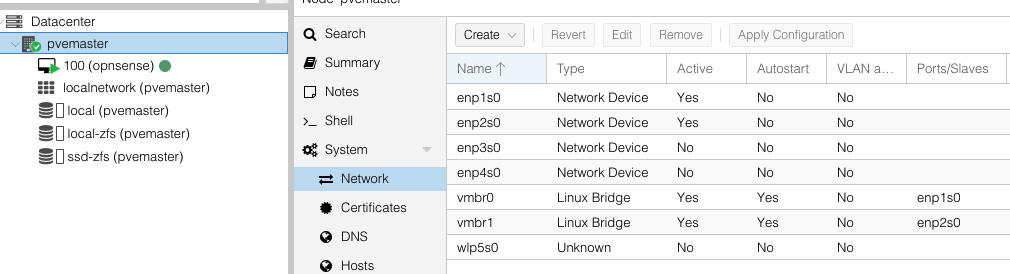
- Then click Apply Configuration
Then install OPNsense with this OPNsense script, using the default settings.
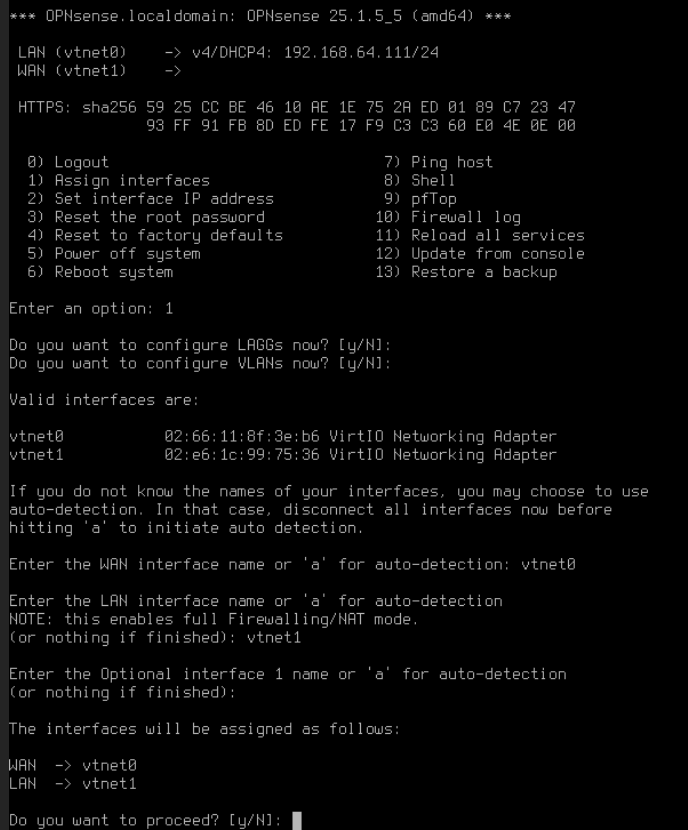
After OPNsense is installed, both LAN ports need to be correctly assigned. We do this via the OPNsense node SHELL.
After logging in (default username/password = root/opnsense) choose option 1 in the menu. Assign the vtnet0 interface as WAN port and vtnet1 as LAN port and confirm the change.
Then change the OPNsense password, you can do this via option 8 in the menu. You can change the password with the following command: passwd root.
To access the OPNsense dashboard via the WAN interface we need to temporarily disable the OPNsense firewall, you do this also in the OPNsense Shell with these commands: disable = pfctl -d , enable = pfctl -e.
In the OPNsense console you should see the WAN ip-address, open a browser and go to the OPNsense dashboard via the URL https://192.168.64.111/. (this is an example, you will undoubtedly have a different ip-address). If everything is set up correctly you will see the OPNsense login screen where you can log in with your (adjusted) login credentials.
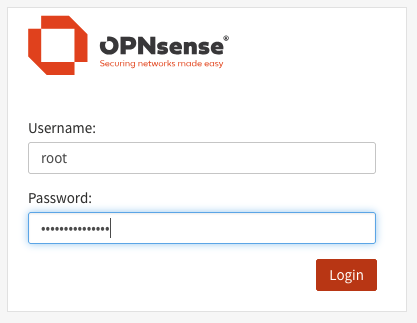
That’s it for OPNsense. You can do a lot with OPNsense, this article is meant to get you started.
OPNsense WIFI card installation (optional)
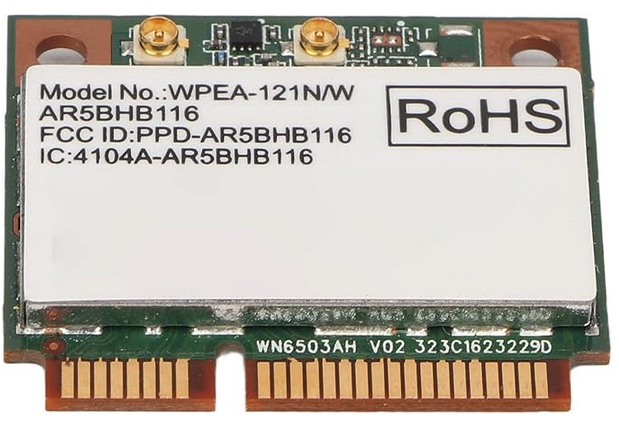
The use of WIFI is not recommended by Proxmox, you also notice this when you try to integrate a WIFI card into the software. I first tried it with a modern AX210HMW card, this card can be used as a WAN fallback for Proxmox but doesn’t work with OPNsense. Eventually I got WIFI working with an older model card: the AR5BHB116 WLAN Mini-PCIE interface card.
If you have installed a WIFI card you can install it as follows:
- Go to Datacenter > Resource Mappings
- Click ADD in the PCI Devices window
- Find the WIFI card in the displayed list and select it and give the card a name and optionally add a description
- Click CREATE
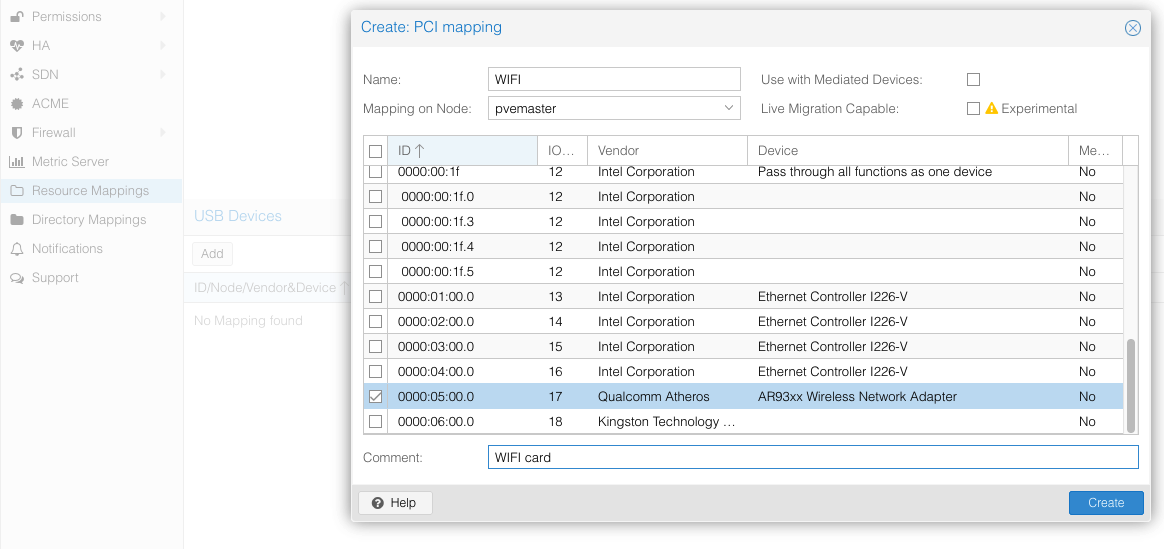
The WIFI card will then appear in the mapping list:

Then go to the OPNsense node in the Proxmox dashboard.
- Go to Hardware
- Click ADD PCI Device
- And select the linked WIFI card in the displayed list
- Click ADD
- And restart the OPNsense node
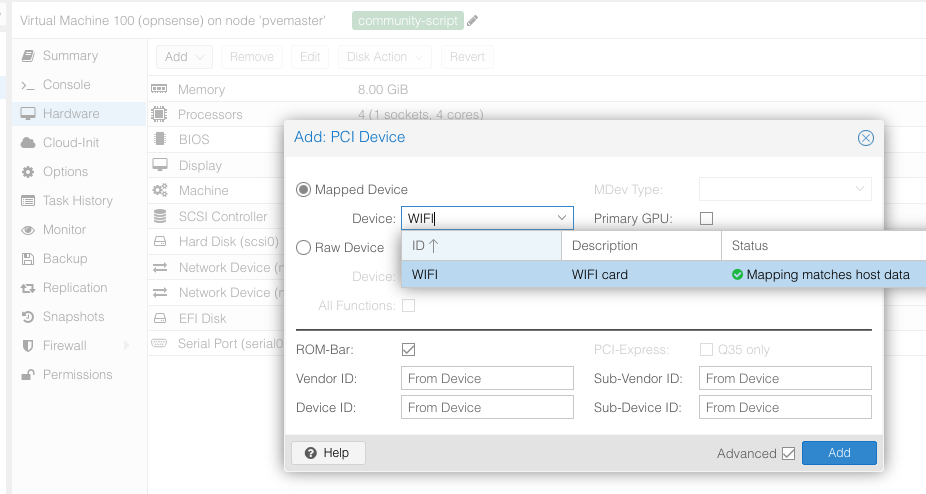
After the restart we will install the WIFI card in OPNsense, go to the OPNsense dashboard (via the WAN address, see OPNsense installation step).
- Go to Interfaces > Wireless > Devices
- Select the shown (and only) interface at Parent interface
- Add a description
- And click SAVE
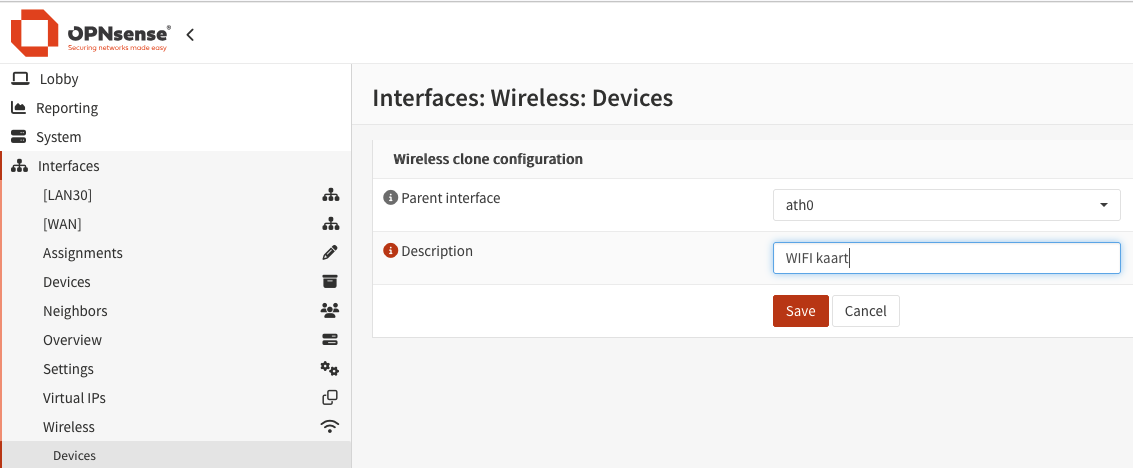
And the WIFI card is installed!
Now the card still needs to be added as interface.

- Go to Interfaces > Assignments > Assign a new interface
- Select the shown (and only) interface
- Add a description
- And click ADD
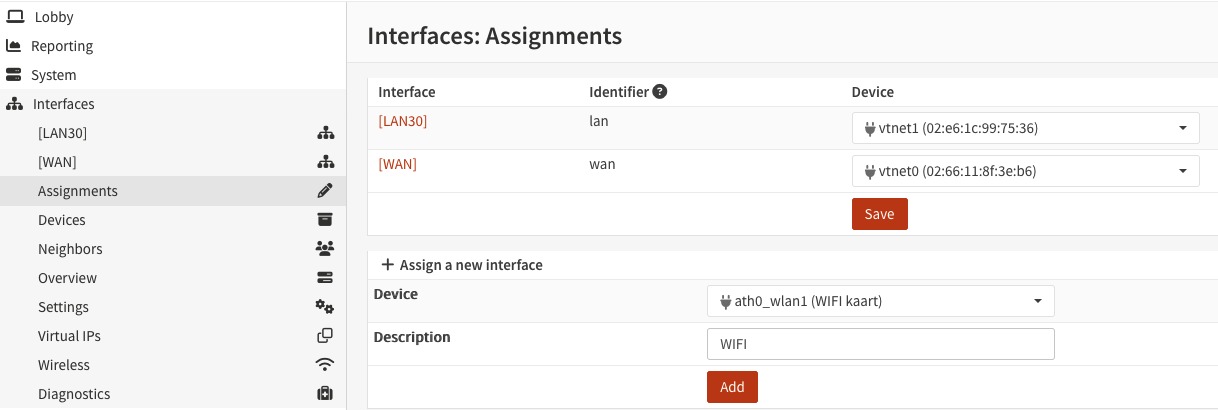
And if everything went well this is the result:
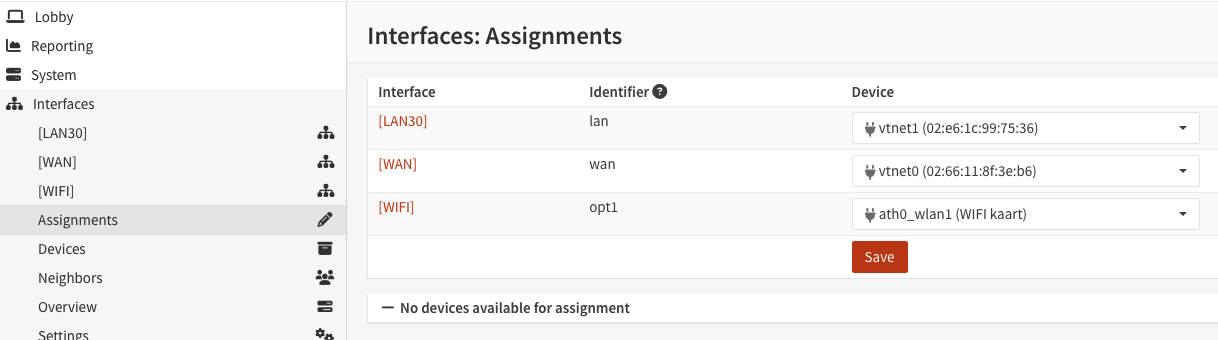
Of course, the WIFI interface still needs to be activated and various things need to be set, this can all be done in the OPNsense dashboard.
Just some things you need to set:
- WIFI card mode: Access point
- SSID
- WIFI password
- WPA2 security
- IP address & mask
- Firewall rules
- Firewall NAT outbound
- DHCP server
How to do all this can be found in the OPNsense documentation.
This brings us to the end of this step-by-step plan, I hope you found it useful!