

A Dragino LHT65 with external light sensor, how do you set it up?
All beginnings are difficult, but with the following step-by-step plan you will quickly have your own LoRa sensor online. And we will also connect the sensor to your possible HomeAssistant platform!
To help you get started with your LoRa adventure, the website will be regularly supplemented with more LoRa sensors. LoRa can not only be used commercially but is also very handy for home & garden applications, just as a hobby, for your Domotics or because it is interesting technology that also uses very little power. A Wifi device simply uses considerably more power than a LoRa device. The range of a LoRa device is also many times greater than that of WIFI, ZigBee, ZWave or 433Mhz devices. LoRa is a technology in which small data packets are sent periodically. Think of sensor data such as light intensity, temperature, pH, pressure, distance (ultrasonic sensor), open/closed position of a switch/magnetic contact, PIR, etc.
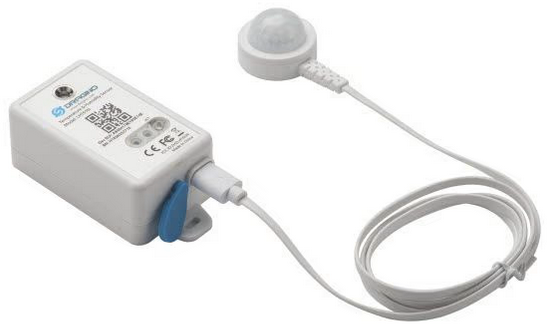
Step 1 - Default setting Dragino LHT65
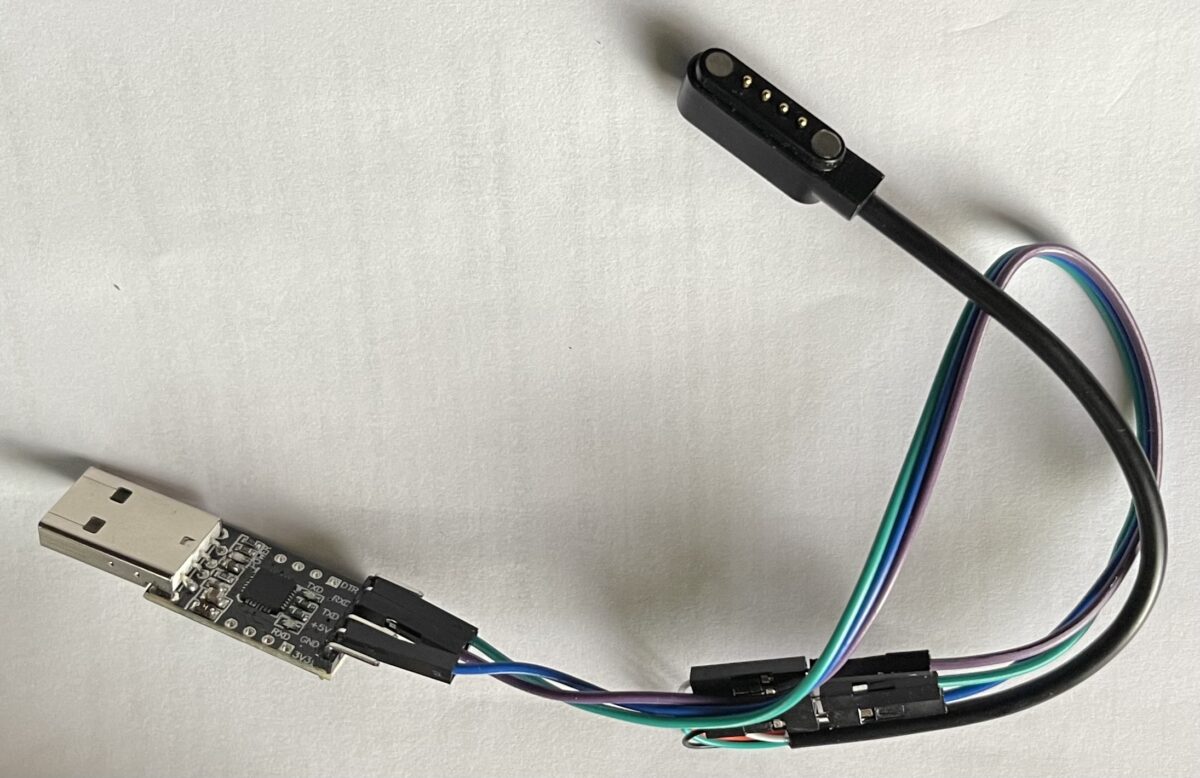
Normally already correctly set, can optionally be set again as Lux sensor by entering the command AT+EXT=5 via the included serial cable and your RX/TX-USB adapter using Putty. This can also be done with an uplink command in hexadecimal code to FPort 2. See the Dragino Wiki for all details.
Step 2 - Register at the TTN Sandbox
The TTN LoRa Sandbox is intended for anyone who wants to learn and experiment with LoRaWAN in a low-threshold and risk-free environment. First you need to register via the link, create a free account if you don’t already have one: www.thethingsnetwork.org/get-started
Step 3 - Login to the TTN Sandbox console
Here you can create/manage your application(s) and gateway(s).
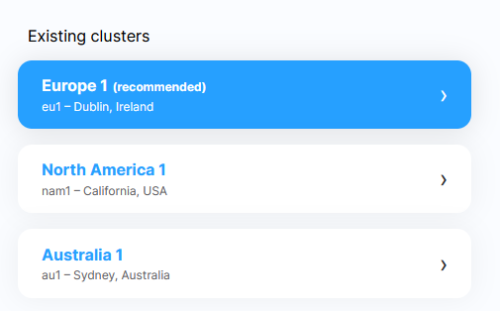
Click on Europe 1 cluster: Thethingsnetwork Console
Step 4 - Create your first application
Start by creating your first application. Each application must have a unique ID, if the ID you provided is already used by someone else you will get a notification and you need to come up with something else. You also give it a name and you can optionally add a description. An example:
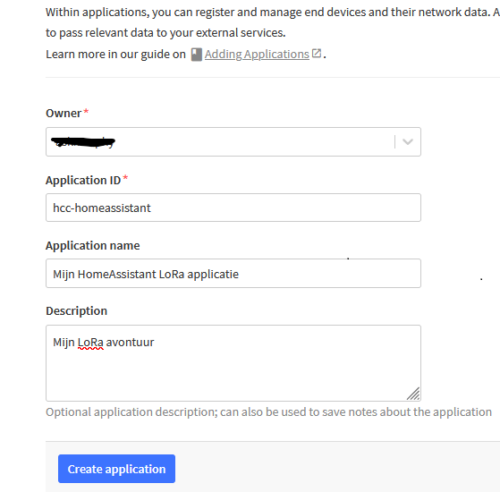
- ID: hcc-homeassistant
- Name: My HomeAssistant LoRa application
- Description: My LoRa adventure
You can add multiple LoRa sensors to an application, you don’t have to do everything at once of course.
Step 5 - Overview/End devices menu
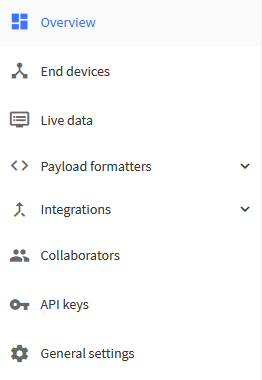
In the main menu you will see a number of items, you can now add your new LoRa sensor. This can be done via both the Overview menu and the End devices menu. You won’t see any devices there at first, but as soon as you add a new LoRa sensor you will see it appear.

Step 6 - Register and activate your LoRa sensor
Let’s now add the LoRa sensor, click on Register end device.
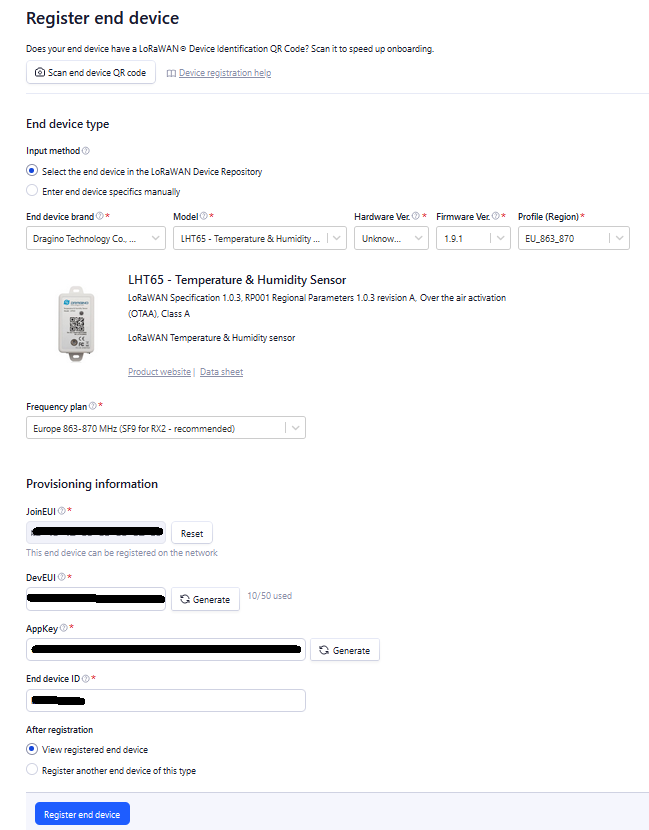
Select the items in the various choice lists as shown in the image above. The displayed Region must match the operating frequency of the hardware. The displayed Frequency plan is recommended. More info about the various options can be found via the corresponding question marks.
After you have done this you need to enter a hexadecimal code in the JoinEUI (App-EUI) field. The LHT65 is delivered factory-registered with codes, you can find these on a sticker in the box of your LHT65. To register your LHT65 you must use these codes and you should not make up or generate your own codes!
As you can see above, it is possible to generate the DevEUI and the AppKey, you can do this for example for a TTGO T-Beam or other nice LoRa device where this is not already built in at the factory. Finally, you need to come up with and enter an End device ID and click on Register end device. If you have done all this then you are ready to connect the LoRa sensor: just press the blue ACT button on the side of the LHT65, you will see a green LED light up and you will see all kinds of data coming in in the Live data tab in order of date & time. In the image below an example:
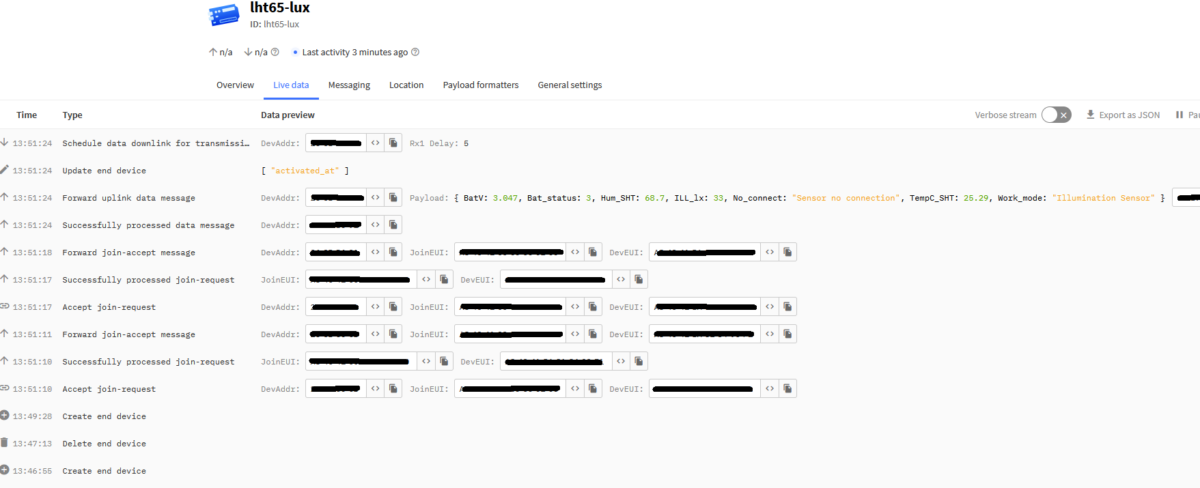
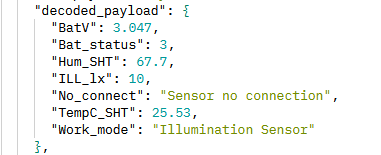
What we find most interesting are of course the sensor data, in the case of our sensor these are the temperature, Lux, humidity and the status of the internal battery. All this is packaged in the payload:
Step 7 - Create an API key
Now you can always view your LoRa sensor data in your TTN Sandbox but it is of course nice if we can actually use the sensors for something, the TTN platform offers various integrations for this. To use such an integration we need at least an API key. We can create this via the API keys menu on the left side of the TTN console (see image at step 4). Give the API key a name, enter the desired expiration date and check only the options below. The option View application information is optional here.
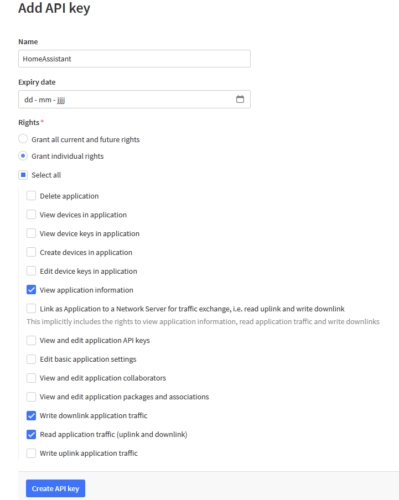
Then click on Create API key, the following screen will appear:
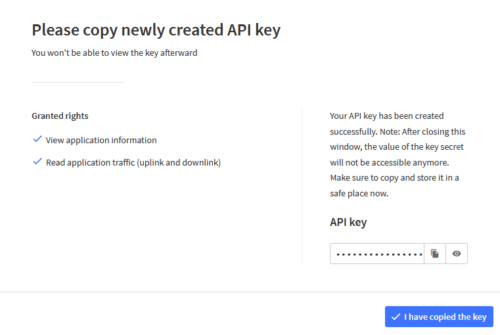
You can now copy the created API key and save it somewhere safe for later use.
Step 8 - MQTT configuration
Let’s now look at the MQTT details, these can be found via the Integrations->MQTT menu on the left:
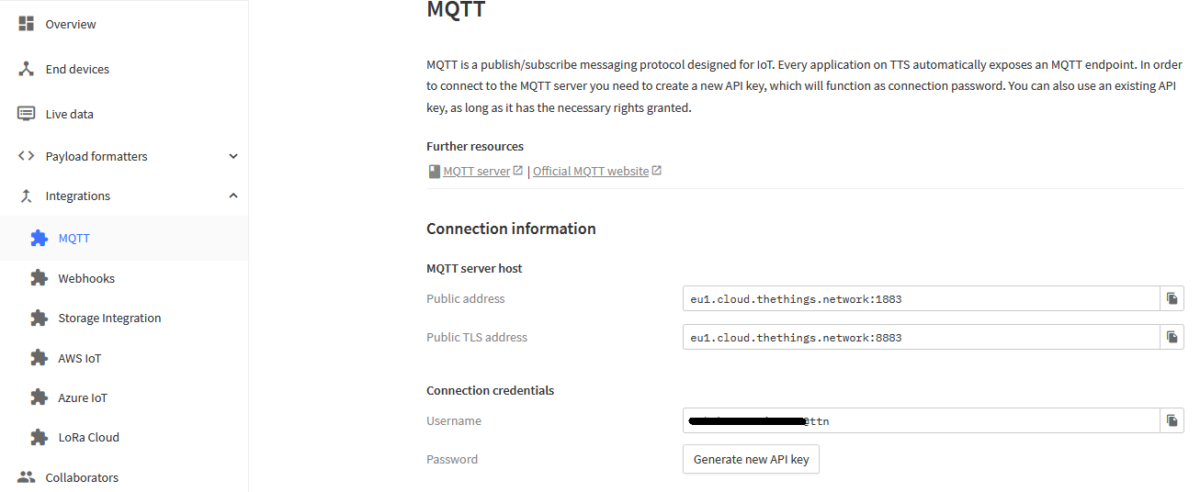
You can see that all required details are already filled in. If desired, you can create a new MQTT password by clicking the Generate new API key button but this is actually not necessary because we already created a suitable API key in the previous step.
You can connect to the TTN MQTT server with your MQTT application in two ways: unencrypted via port 1883 and encrypted via port 8883 (TLS). Perhaps useful if you first test the connection with the MQTT server, for example with the mqtt-explorer program.
Step 9 - HomeAssistant & Nodered
If you have completed all steps successfully then it is now time to actually use the sensor data. Let’s assume that you use HomeAssistant and that you are familiar with MQTT and already use it.
You can retrieve the data from the TTN MQTT server in a number of ways.
Using YAML:
Put the following code in configuration.yaml and restart HomeAssistant:
mqtt:
  broker: eu1.cloud.thethings.network
  port: 1883
  username: "[TTN Application ID]"
  password: "[API key]"
  discovery: true
  discovery_prefix: homeassistant
Of course you need to fill in your TTN Application ID and API key.
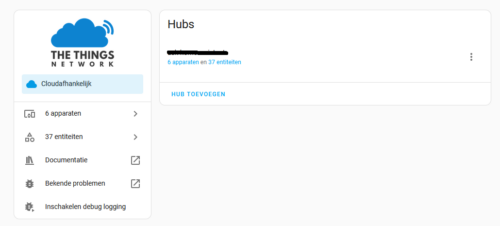
Using the HomeAssistant thethingsnetwork integration:
https://www.home-assistant.io/integrations/thethingsnetwork
(nice but too slow for example a magnetic contact)
Using the NODERED MQTT node:
https://flows.nodered.org/node/node-red-contrib-cayenne-mqtt-client