

How to configure an ESP32 camera with ESPhome & HomeAssistant?
ESP32-Camera with ESPHome and Home Assistant
The ESP32-CAM is a low-cost camera module suitable for simple applications, such as monitoring a small space or observing birds. With ESPHome you can integrate the camera into Home Assistant to view live images and set up automations.
However, it is important to know that the ESP32-CAM is not a powerful camera. The image quality and frame rate are limited, which can often make the images a bit slow and jerky. This makes it more suitable for basic surveillance than for real-time video streaming. Nevertheless, it can be a fun and educational solution for those who want to get started with IoT projects.
Step 1 - What do we need
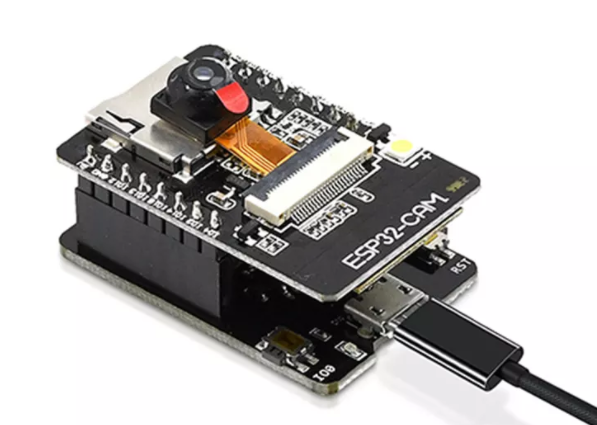
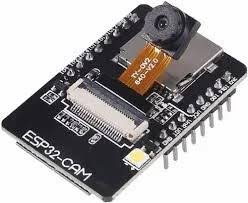
- an ESP32-CAM
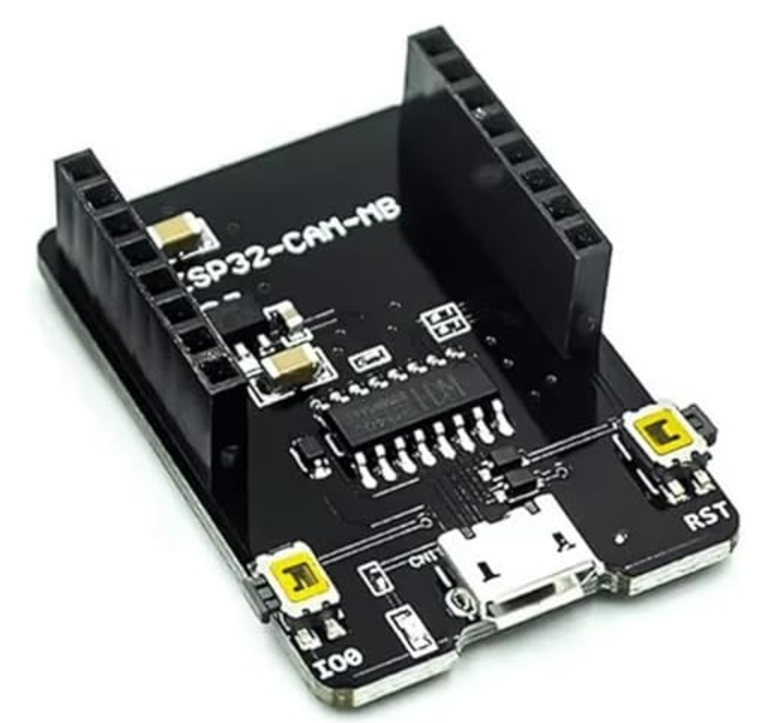
- an ESP32-CAM USB programming board
- a micro-usb cable
- and some program code
- Home Assistant and the ESPHome integration
Since the ESP32-CAM does not have a USB port, we plug the ESP32-CAM into the programming board. This way we can easily program the camera board using ESPHome Builder. This tool is available as an integration in Home Assistant.
Step 2 - ESPHome Builder
ESPHOME requires a browser that supports WebSerial, for the below use Google Chrome or Microsoft Edge.
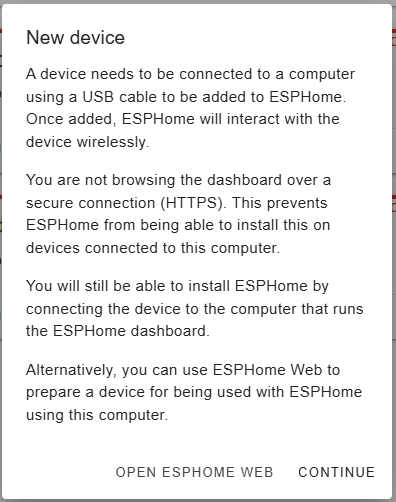
First go to your Home Assistant dashboard and click on “ESPHome Builder” in the left menu. Then click on “New device” at the bottom right, a popup window will open with the buttons “OPEN ESPHOME WEB” and “CONTINUE”. Click on “CONTINUE”.

Step 3 - Create ESPHome configuration
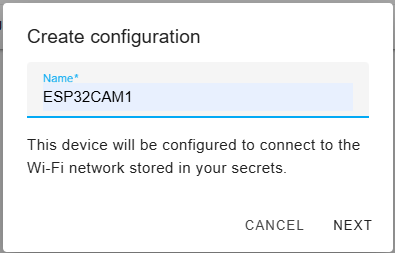
Now enter the desired name of the camera, for example: ESP32CAM1 and click NEXT.
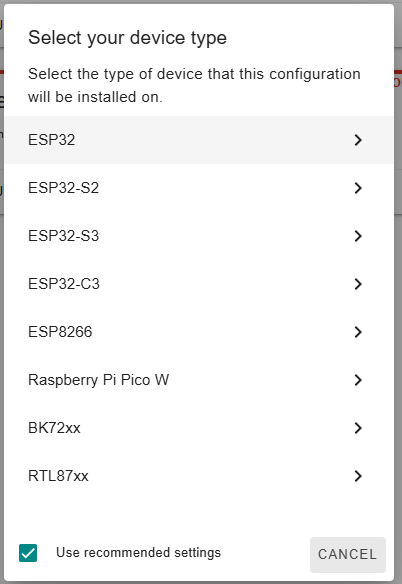
In the next window, select ESP32 as DEVICE TYPE.
The configuration is now being created.
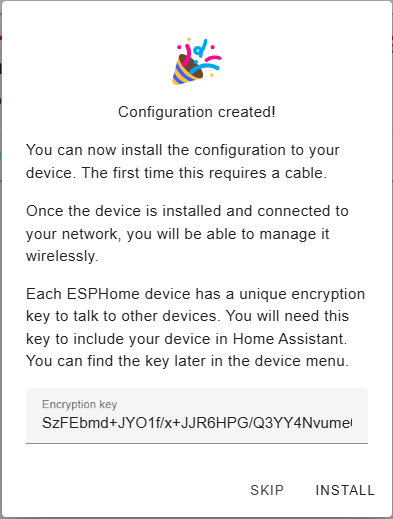
Click on Encryption key to copy it and save it in a text file for a moment. Then click on SKIP.
Step 4 - Modify & compile program code
If you now go to ESP Builder in Home Assistant you will see that a new ESP32 device has been added.
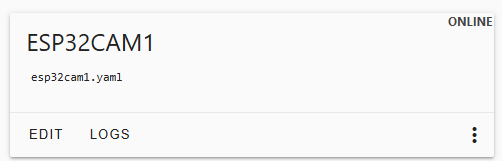
There is now some basic code in the ESP32CAM configuration, to get the camera working we are going to replace this basic code completely.
Click on Edit and replace all code with the code from the yaml file that you can download below. Change the Encryption key with the key that you saved in a file in the previous step. Also change the fixed IP address and the gateway with your own IP addresses. Then click on Save and Install.
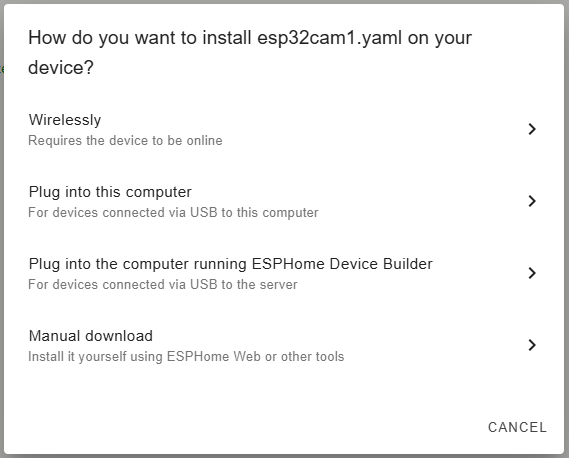
In the next window, click Plug into this computer.
The code is now being compiled.
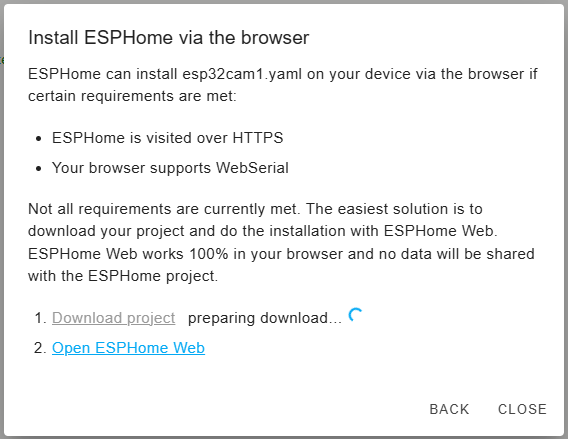
Once the compilation is complete you can download the compiled file via Download project.
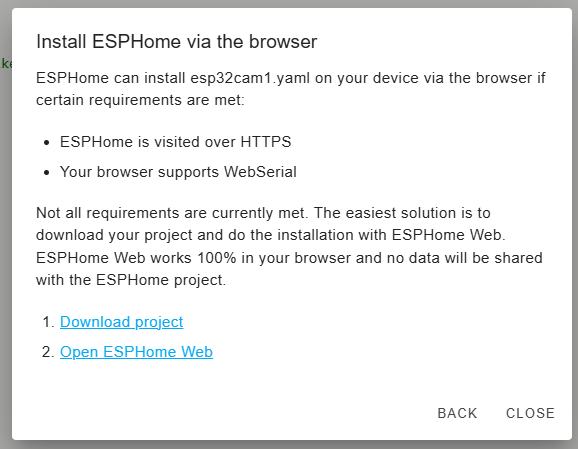
Then click on Open ESPHome Web.
Step 5 - ESPHome WEB
ESPHOME Web should open in a new browser window.
There are 2 small push buttons on the programming board: IO1 and RST.
To put the ESP32CAM in programming mode, press and hold the IO1 button. Your board may not have an IO1 push button, in which case short-circuit GPIO0 with GND
Then connect the USB cable to your computer and click CONNECT.
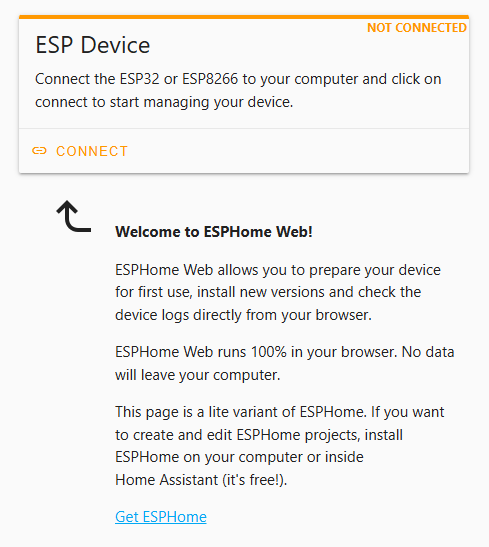
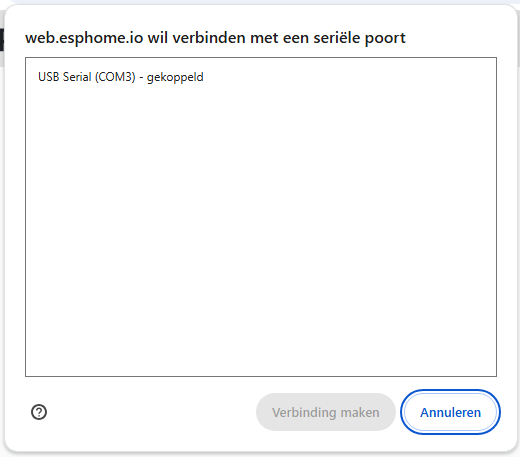
If you have done the above correctly you will see the serial COM port appear in the window, click on it.
In the next window, click on INSTALL. In the popup window, select the compiled file.
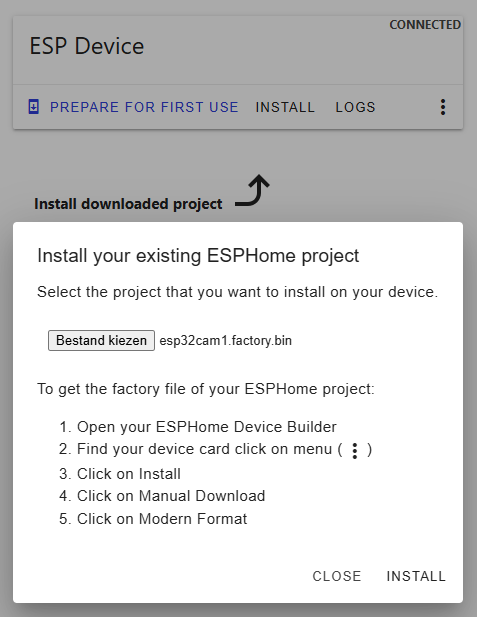
Click on INSTALL, the programming will now start.
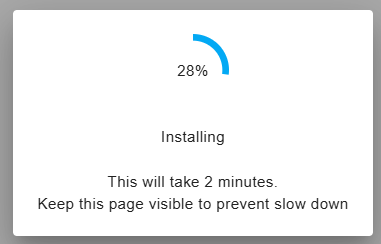
Please be patient..
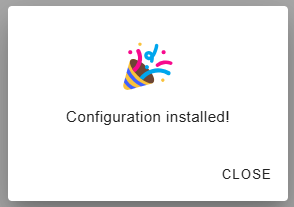
The ESP32CAM is now equipped with the new software, you can release the IO1 button.
Step 6 - Activate camera
You can now close the ESPHome window, also close the ESPHome Builder EDIT window.
Disconnect the ESP32 camera from the computer and then reconnect it to a USB connector or to your computer. The camera will now start up and Home Assistant will recognize it as a new device.
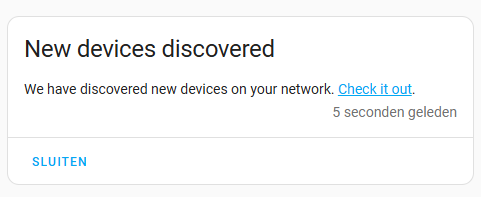
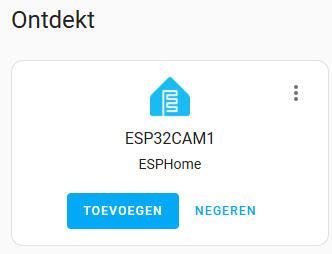
Now click on add and then on SEND
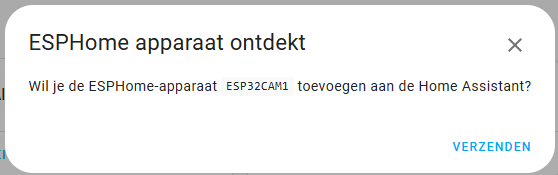
You can optionally assign the camera to a room.
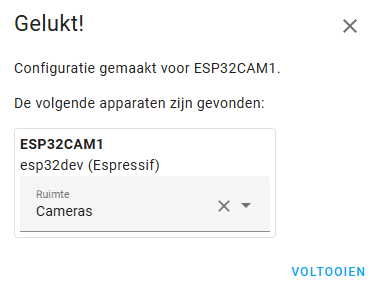
Click on FINISH, you will now find the camera in Home Assistant under MEDIA and of course also under the Home Assistant integration ESPHome. If you ever want to remove the camera, you can do so via the same integration.