

Bookmarks in your web browser, shortcuts on your desktop: a lot of hassle and often very confusing.
But it can be done differently and that is with the Heimdall Dashboard!
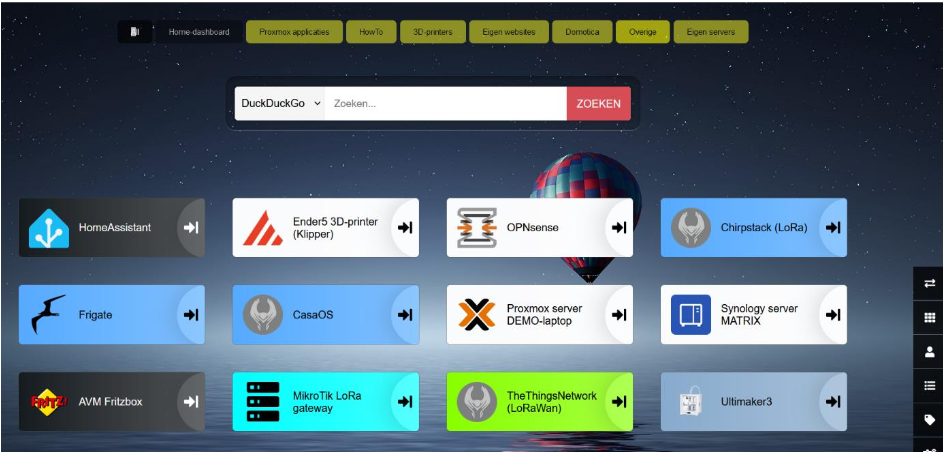

Heimdall is a modern, self-hosted dashboard that you can use as a central homepage for all your applications, services and favorite links. It’s easy to install, user-friendly, and looks great too.
What makes Heimdall special?
- Easy to use: you can add links and applications with minimal effort.
- Customizable: create your own categories and customize the homepage to your liking.
- Widgets for popular services: supports all kinds of integrations such as Plex, Sonarr, Proxmox, and Radarr.
- Lightweight and efficient: runs smoothly on a local server, under proxmox, or via Docker on your own Windows computer.
Whether you want to organize a home network, want a clear access to your home lab, or want to have your web browser bookmarks and desktop shortcuts in one place: with Heimdall you can easily achieve that!
Install Heimdall on Windows
Step 1 - Install Docker Desktop
Download Docker Desktop from https://www.docker.com and install it on your Windows computer, no need to register or login. After installation, you need to restart your computer.
Step 2 - Heimdall installation
Click with your mouse on the magnifying glass at the bottom of your Windows Desktop and enter the following search term: CMD. You will then see the Command Prompt appear as the best match.
Place your mouse on this Command Prompt text and click the right mouse button. You will then see a menu appear with the text at the top: ‘Run as administrator’. Click on that with your left mouse button. Then type the following in the opened Command Prompt window:
c:
mkdir c:\heimdall\data
docker run -d --name=heimdall -p 8080:80 -v c:\heimdall\data:/config --restart unless-stopped lscr.io/linuxserver/heimdall:latest
This will download and install Heimdall as a Docker application.
Once the installation is done, you can start your favorite web browser and open the Heimdall Dashboard: http://localhost:8080
You can now customize the Heimdall Dashboard to your liking via the vertical menu at the bottom right, give it a try.
Check out the screenshot above to get an idea of what such a dashboard can look like.